The phone app for the people in the field.
Find a fiber, record a splice, add a pedestal and take a photo. It runs in the phone's browser, and it adds to the home screen like an app. No app store. No ArcGIS license on the phone.
What a tech can do from a phone.
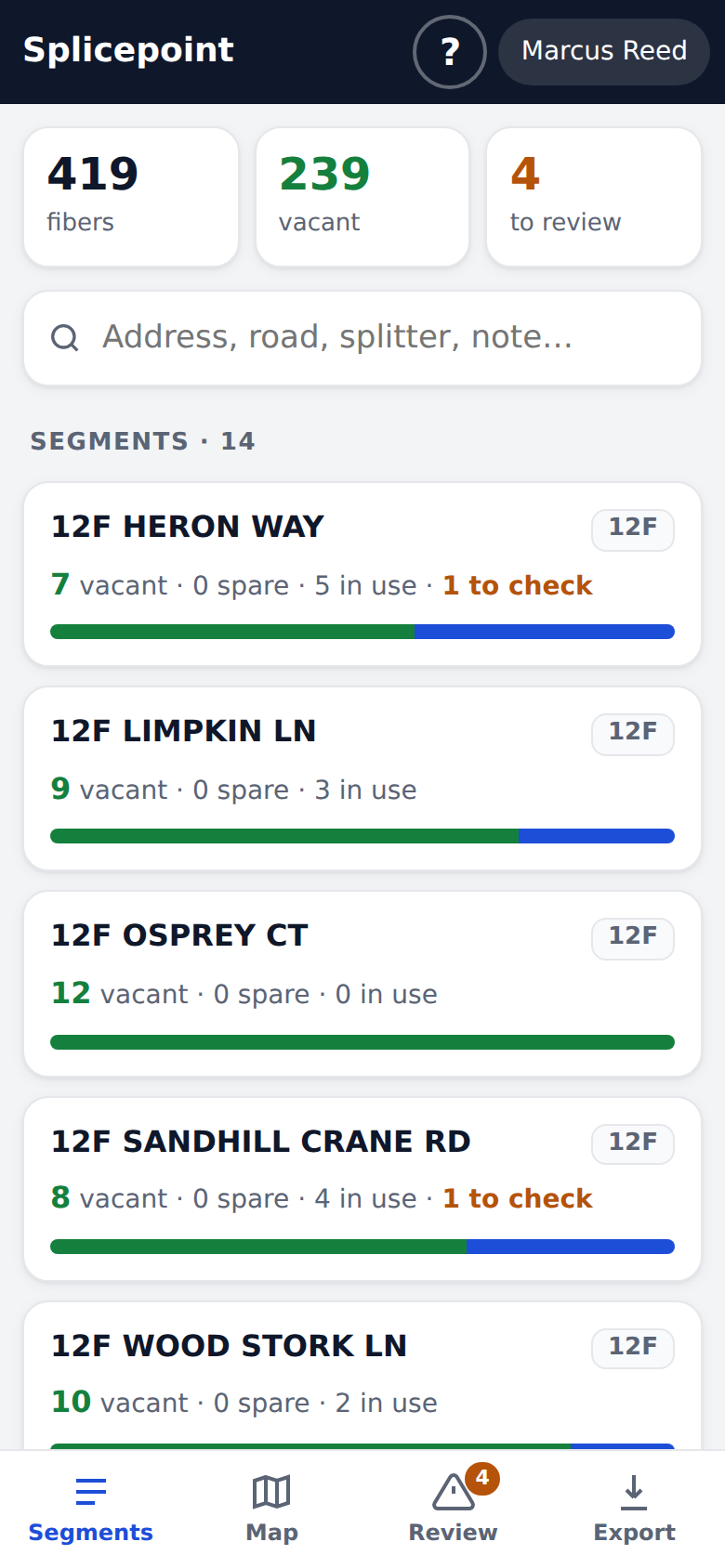
Find what you need
Start from a list of every segment with its counts, or search for an address, a road, a splitter or a note.
- Vacant, spare and in-use counts on every segment
- Search across every fiber
- Links you can text to a coworker
Look up and change a fiber
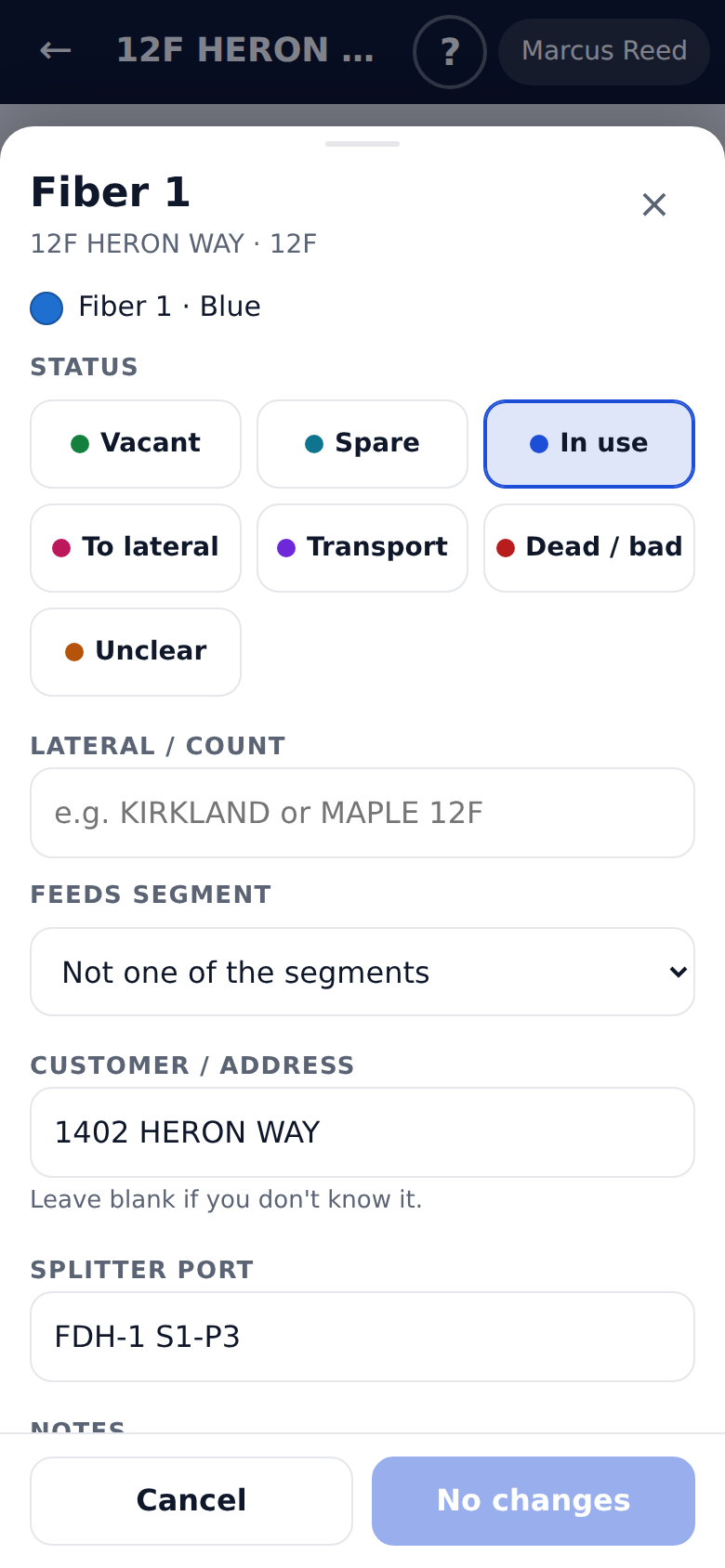
Tap a fiber to see its tube and fiber color, its status and its customer. Change it and save. Your name goes on the change.
- Status buttons: vacant, spare, in use, to lateral, transport, dead
- Customer address, lateral, splitter port and notes
- Undo right after you save
- Flag it for the office to check
Work from the map
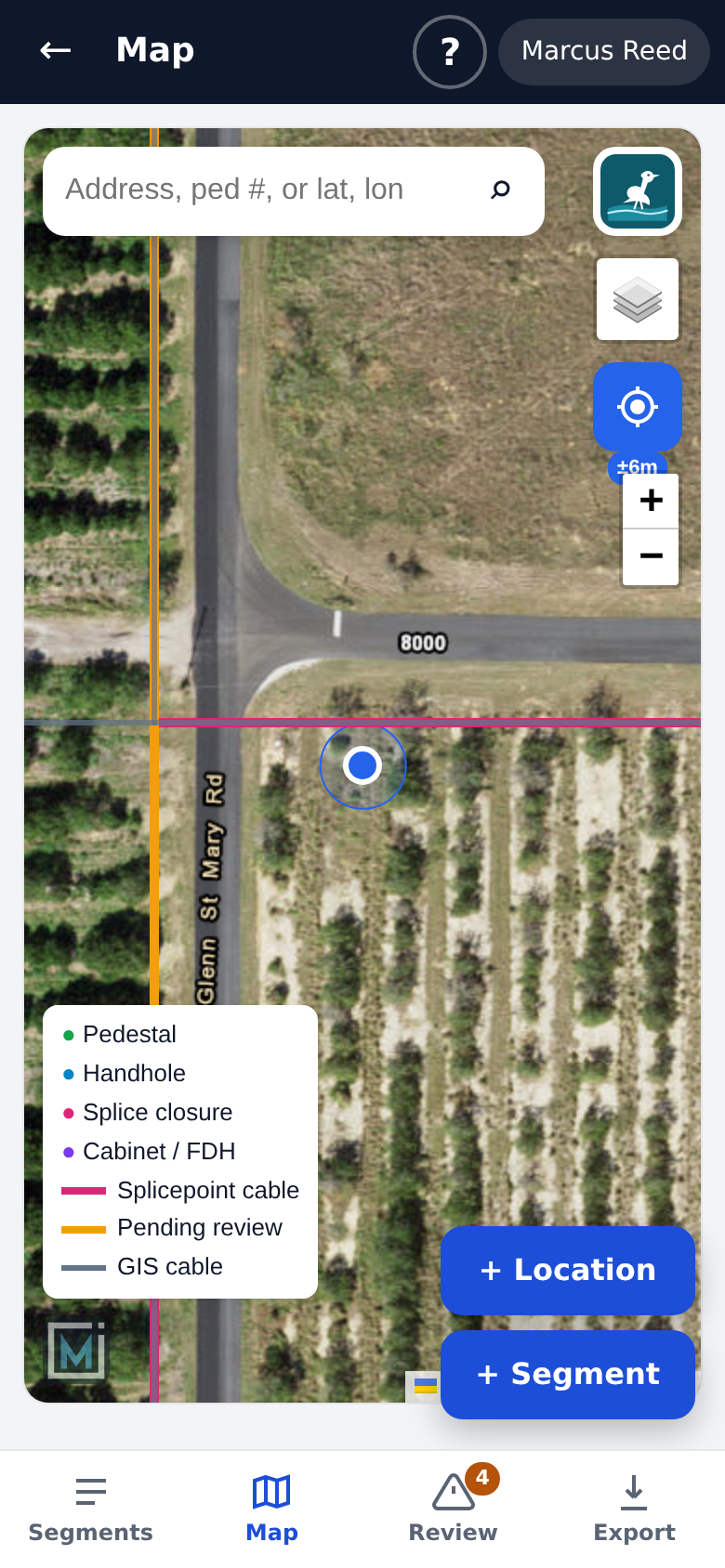
Your cables and structures on a map that works with one thumb. The GPS dot follows you, and turns grey if the signal drops.
- Streets, satellite, hybrid and light gray maps
- Search an address, a pedestal number or coordinates
- Directions and Street View to any structure
Add what you find
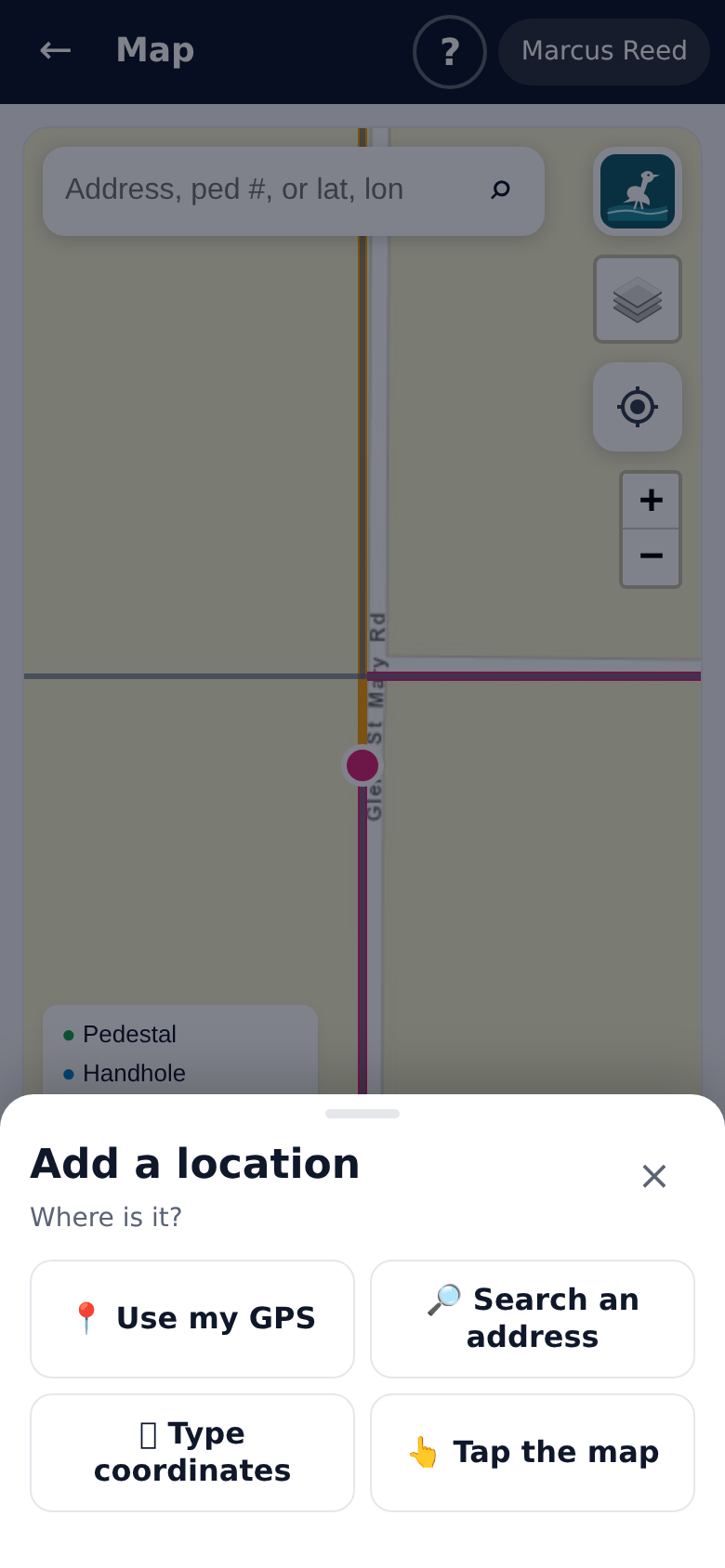
Standing at a new pedestal? Add it by GPS, an address, typed coordinates or a tap on the map.
- Warns you when something is already within a few feet
- Snaps to a nearby GIS cable
- Waits for an admin before it goes into the GIS
Record splices as you make them
Pick the two cables. Tap a fiber on the left, then its partner on the right. Or splice a whole run in order.
- Tray and position on every splice
- Pass or fail, or OTDR loss, after each one
- Import an OTDR CSV and check it before saving
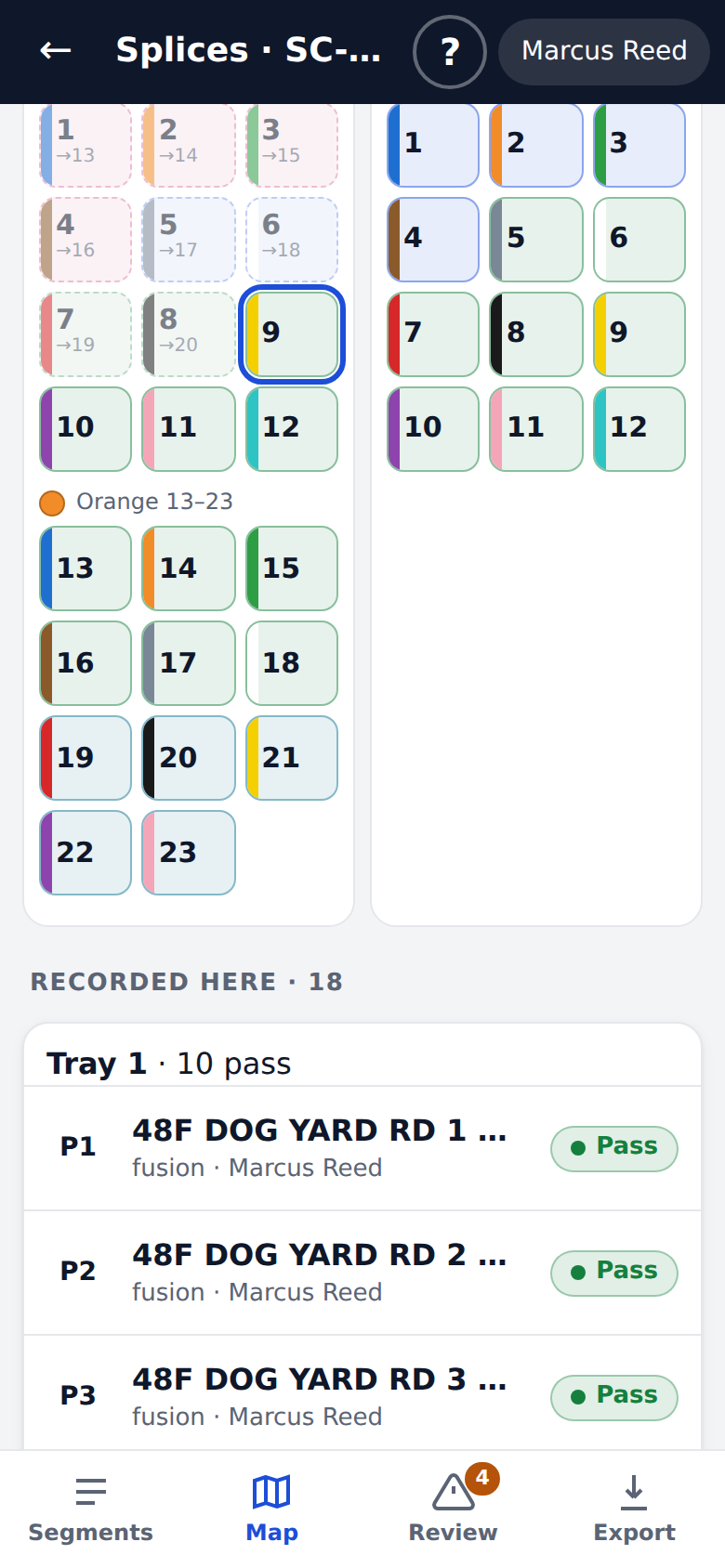
Photos and files
Every structure has a page with its splices, the cables at it and its photos. Big phone photos are shrunk before they upload.
- Photos, PDFs and OTDR files
- Edit, move or delete what you added
- One tap for directions
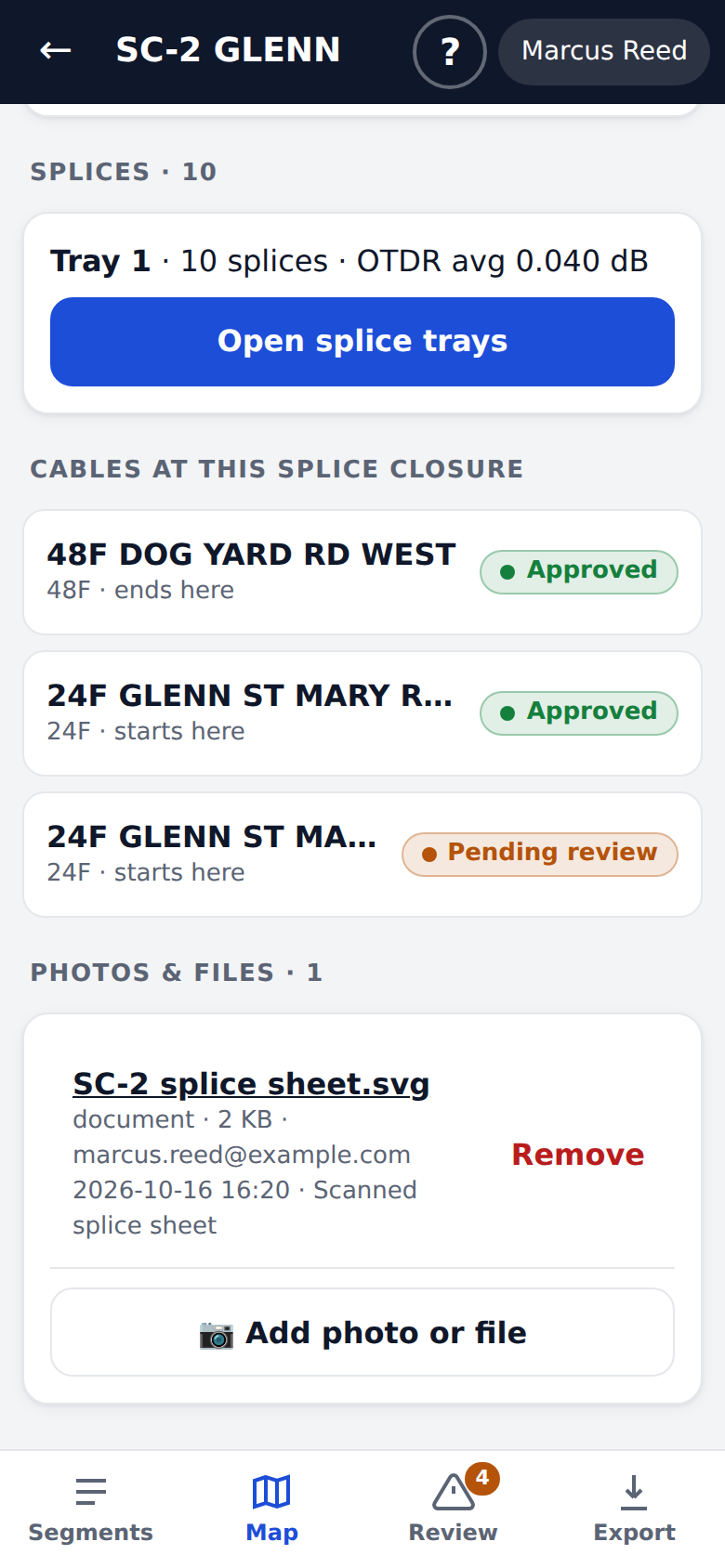
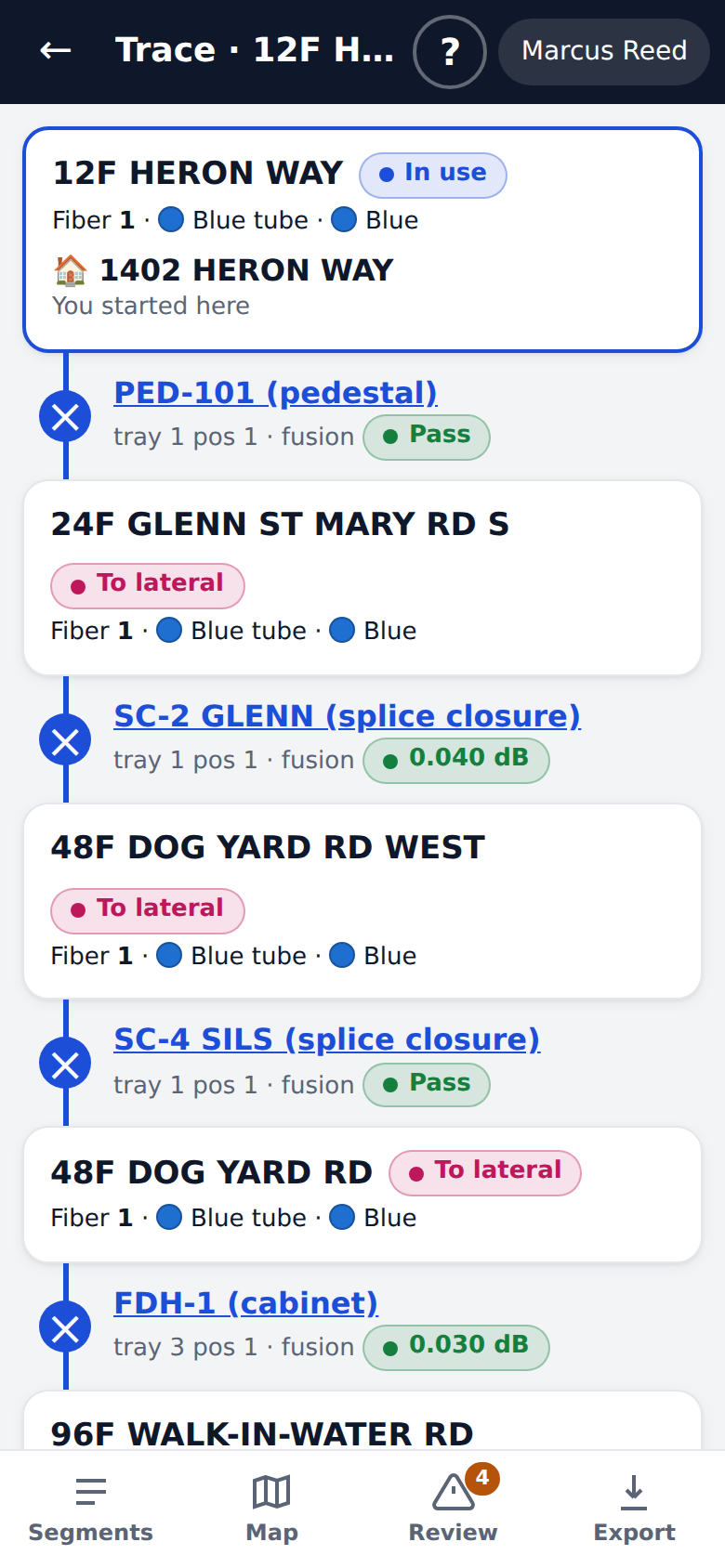
Trace and check a cut
Follow a fiber through each closure to the customer. Before you cut, see every customer and cable fed through it.
- Every closure, tray and position on the path
- Customers grouped by how they are fed
- Fibers in use with no address are counted too
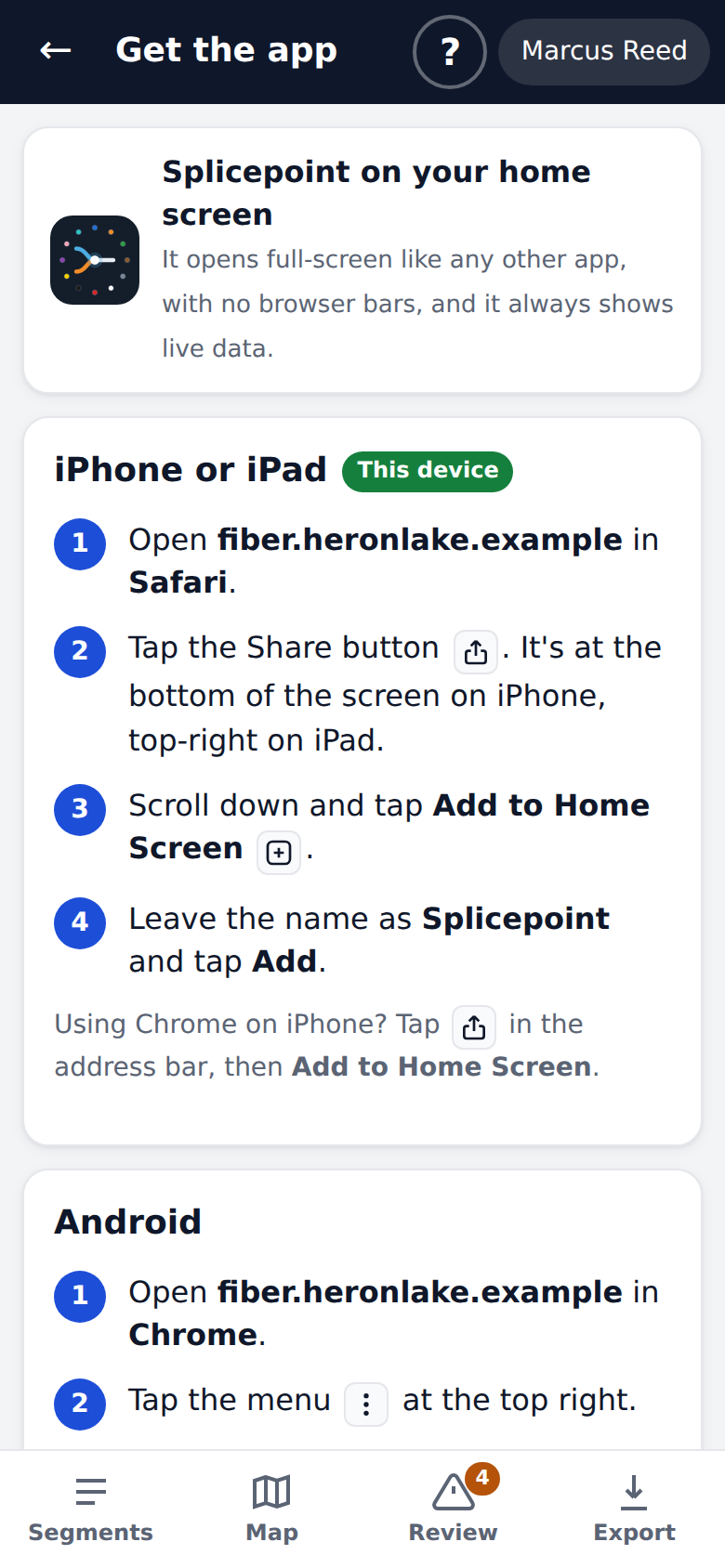
Put it on the home screen
The app shows step-by-step help for iPhone and Android. After that it opens full screen like any other app.
- Sign in once with an email code
- Always live data, nothing to update
- Tells you when you are offline
Big buttons, plain words and no surprises.
Thumb-sized
Large tap targets and sheets that slide up from the bottom. Works in the sun and in gloves, as well as a phone can.
GPS that keeps trying
Under trees or in a vault the signal drops. The app keeps the last known spot and picks the signal back up.
Safe to use
If someone else saved first, you see their change. Deletes can be restored for 30 days.
Want your crew to try it?
Open the demo on your phone, or talk to us about setting it up on your own network.